
PNNL

  • About
  • News & Media
  • Careers
  • Events
  • Research
    • Scientific Discovery
      • Autonomous Science
      • Biology
        • Chemical Biology
        • Computational Biology
        • Ecosystem Science
        • Human Health
          • Cancer Biology
          • Exposure Science & Pathogen Biology
        • Integrative Omics
          • Advanced Metabolomics
          • Chemical Biology
          • Mass Spectrometry-Based Measurement Technologies
          • Spatial and Single-Cell Proteomics
          • Structural Biology
        • Microbiome Science
          • Biofuels & Bioproducts
          • Human Microbiome
          • Soil Microbiome
          • Synthetic Biology
        • Predictive Phenomics
      • Chemistry
        • Computational Chemistry
        • Chemical Separations
        • Chemical Physics
        • Catalysis
      • Earth & Coastal Sciences
        • Global Change
        • Atmospheric Science
          • Atmospheric Aerosols
          • Human-Earth System Interactions
          • Modeling Earth Systems
        • Coastal Science
        • Ecosystem Science
        • Subsurface Science
        • Terrestrial Aquatics
      • Materials Sciences
        • Materials in Extreme Environments
        • Nondestructive Examination
        • Precision Materials by Design
        • Science of Interfaces
        • Smart Advanced Manufacturing
          • Cold Spray
          • Friction Stir Welding & Processing
          • ShAPE
      • Nuclear & Particle Physics
        • Dark Matter
        • Fusion Energy Science
        • Neutrino Physics
      • Quantum Information Sciences
    • Energy Resiliency
      • Electric Grid Modernization
        • Emergency Response
        • Grid Analytics
          • AGM Program
          • Tools and Capabilities
        • Grid Architecture
        • Grid Cybersecurity
        • Grid Energy Storage
        • Transmission
        • Distribution
      • Energy Efficiency
        • Appliance and Equipment Standards
        • Building Energy Codes
        • Building Technologies
          • Advanced Building Controls
          • Advanced Lighting
          • Building-Grid Integration
        • Commercial Buildings
        • Federal Buildings
          • Federal Performance Optimization
          • Resilience and Security
        • Residential Buildings
          • Building America Solution Center
          • Energy Efficient Technology Integration
          • Home Energy Score
        • Energy Efficient Technology Integration
      • Energy Storage
        • Electrochemical Energy Storage
        • Flexible Loads and Generation
        • Grid Integration, Controls, and Architecture
        • Regulation, Policy, and Valuation
        • Science Supporting Energy Storage
        • Chemical Energy Storage
      • Environmental Management
        • Waste Processing
        • Radiation Measurement
        • Environmental Remediation
      • Fossil Energy
        • Subsurface Energy Systems
        • Advanced Hydrocarbon Conversion
      • Nuclear Energy
        • Fuel Cycle Research
        • Advanced Reactors
        • Reactor Operations
        • Reactor Licensing
        • Nondestructive Examination
      • Renewable Energy
        • Solar Energy
        • Wind Energy
          • Wind Resource Characterization
          • Wildlife and Wind
          • Wind Systems Integration
          • Wind Data Management
          • Distributed Wind
        • Marine Energy
          • Environmental Monitoring for Marine Energy
          • Marine Biofouling and Corrosion
          • Marine Energy Resource Characterization
          • Testing for Marine Energy
          • The Blue Economy
        • Hydropower
          • Environmental Performance of Hydropower
          • Hydropower Cybersecurity and Digitalization
          • Hydropower and the Electric Grid
          • Materials Science for Hydropower
          • Pumped Storage Hydropower
          • Water + Hydropower Planning
        • Grid Integration of Renewable Energy
        • Geothermal Energy
      • Transportation
        • Bioenergy Technologies
          • Algal Biofuels
          • Aviation Biofuels
          • Waste-to-Energy and Products
        • Hydrogen & Fuel Cells
        • Vehicle Technologies
          • Emission Control
          • Energy-Efficient Mobility Systems
          • Lightweight Materials
          • Vehicle Electrification
          • Vehicle Grid Integration
    • National Security
      • Chemical & Biothreat Signatures
        • Contraband Detection
        • Pathogen Science & Detection
        • Explosives Detection
        • Threat-Agnostic Biodefense
      • Cybersecurity
        • Discovery and Insight
        • Proactive Defense
        • Trusted Systems
      • Nuclear Material Science
      • Nuclear Nonproliferation
        • Radiological & Nuclear Detection
        • Nuclear Forensics
        • Ultra-Sensitive Nuclear Measurements
        • Nuclear Explosion Monitoring
        • Global Nuclear & Radiological Security
      • Stakeholder Engagement
        • Disaster Recovery
        • Global Collaborations
        • Legislative and Regulatory Analysis
        • Technical Training
      • Systems Integration & Deployment
        • Additive Manufacturing
        • Deployed Technologies
        • Rapid Prototyping
        • Systems Engineering
      • Threat Analysis
        • Advanced Wireless Security
          • 5G Security
          • RF Signal Detection & Exploitation
        • Border Security
        • Internet of Things
        • Maritime Security
        • Millimeter Wave
        • Mission Risk and Resilience
    • Data Science & Computing
      • Artificial Intelligence
      • Graph and Data Analytics
      • Software Engineering
      • Computational Mathematics & Statistics
      • Future Computing Technologies
        • Adaptive Autonomous Systems
    • Lab Objectives
    • Publications & Reports
    • Featured Research
  • People
    • Inventors
    • Lab Leadership
    • Lab Fellows
    • Staff Accomplishments
  • Partner with PNNL
    • Education
      • Undergraduate Students
      • Graduate Students
      • Post-graduate Students
      • University Faculty
      • University Partnerships
      • K-12 Educators and Students
      • STEM Education
        • STEM Workforce Development
        • STEM Outreach
      • Internships
    • Community
      • Philanthropy
      • Volunteering
    • Industry
      • Why Partner with PNNL
      • Explore Types of Engagement
      • How to Partner with Us
      • Available Technologies
      • Procurement
      • Technology Ombuds
  • Facilities & Centers
    • All Facilities
      • Atmospheric Radiation Measurement User Facility
      • Electricity Infrastructure Operations Center
      • Energy Sciences Center
      • Environmental Molecular Sciences Laboratory
      • Grid Storage Launchpad
      • Institute for Integrated Catalysis
      • Interdiction Technology and Integration Laboratory
      • PNNL Portland Research Center
      • PNNL-Seattle
      • PNNL-Sequim (Marine and Coastal Research)
      • Radiochemical Processing Laboratory
      • Shallow Underground Laboratory

Advanced Metering Best Practices

  • Metering 101
  • Program Objectives
    • Advanced Metering System Costs and Savings Potential
    • Common Metering Challenges
  • Electricity Metering
  • Water Metering
  • Connectivity Troubleshooting
    • Pre-Troubleshooting Checklists
    • Decision Trees
  • Glossary

Breadcrumb

  1. Home
  2. Projects
  3. Advanced Metering Best Practices

Connectivity Troubleshooting: Getting Started

Maintaining network connectivity is the most common advanced metering problem reported by federal energy managers. This guide will walk you through potential troubleshooting steps to take if an advanced electricity meter appears to be disconnected from the local area network (LAN). The guide centers on two connectivity troubleshooting decision trees related to power issues and network connectivity issues. 

The decision trees assume that you know the meter location and have the appropriate authorization to access and perform basic testing and servicing on the meter. The trees indicate steps where it may be necessary to call an authorized electrician or information technology (IT) network administrator for further assistance. 

If you’re an experienced user, you may prefer to navigate directly to the troubleshooting decision trees. Otherwise, read on for additional background information that can help you prepare to troubleshoot meter connectivity issues. 

The Glossary provides a list of terms and definitions for understanding the components of advanced metering infrastructure and interpreting the decision trees.

This web-based troubleshooting guide is also available as a PDF report. 

Note: This troubleshooting guide provides general recommendations for troubleshooting disconnected meters. Always follow your facility’s safety policies and consult the relevant standard operating procedures (SOP) before proceeding with any troubleshooting steps in this guide. If in doubt about whether you have the authorization or knowledge to safely conduct an action, do not proceed. Instead, consult with your manager and the relevant safety personnel about appropriate next steps.

General Considerations 

Locating the Electricity Meter 
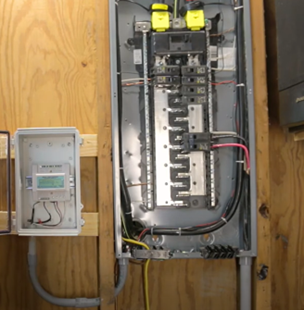
Advanced electricity meter panelboard
Advanced electricity meter co-located with a panelboard in a mechanical room. (Photo courtesy of Appalachian DIY)

Generally, electricity meters are located near or inside of the main electrical panel in the mechanical room of a building. Meters external to the panel are typically mounted adjacent to the panel with conduit connecting them. A meter located inside of the panel may require a scheduled power shutoff to access and perform diagnostics. Consult your facility’s safety SOP on how to proceed before opening any electrical panel.

Testing 

Power source testing: If a power source was previously unplugged or is suspected to be faulty, test the power source with a multimeter before reconnecting the meter to power. The power source should perform within acceptable limits (e.g., ±5% 120 V on standard outlet). Consult your facility’s electrical safety standard operating procedure (SOP) and do not perform any unauthorized electrical work. 

Controller port testing: If a communications port on a controller is suspected to be faulty, connect a second, properly operating meter to test the port. If the properly operating meter can connect to the controller, then the issue is likely with the initial disconnected meter. A laptop running a terminal emulator such as PuTTY can also be connected to the port to test its functionality. If the device is powered by the same port as the port from which it receives data, like with power over Ethernet (PoE), test the port with a multimeter before reconnecting any devices (see Power source testing above).

Checking for Power to the Meter 

The first step after locating the problematic meter is to check for power to the meter. If it can be physically accessed, look for blinking or solid light-emitting diodes (LEDs) or a backlight to the display (if the meter has one). If your meter appears to be powered on, but is disconnected from the LAN, see page 1 of the Network Troubleshooting Decision Tree.  

If it can be done without unplugging the meter itself, attempt to power-cycle the device. You may need to consult the manufacturer documentation for your meter to find out how to do this properly. If the meter shows no signs of power, see the power troubleshooting decision tree. If the meter does appear to be powered on, but remains disconnected from the LAN, refer to page 1 of the Network Troubleshooting Decision Tree. 

Checking for Power to a Controller 
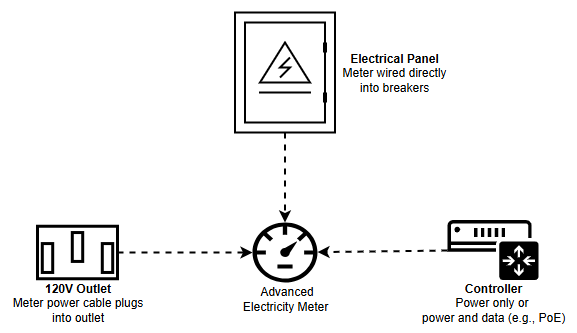
Power supply options for advanced electricity meters
Power supply options for an advanced electricity meter. (PNNL)

When checking for power to a controller, look for blinking or solid LEDs or a backlight to the display (if available). Power to the controller can also be checked by determining whether other devices connected to the controller are functioning correctly. If the controller is not powered on, first determine how it is connected to power, e.g., via a standard 120 V outlet or a direct connection to the electrical panel. Look for frayed, loose, or incomplete connections. If the controller is powered directly by the panel, an authorized electrician may be required to proceed. Once the fault has been identified, follow your facility’s electrical safety SOP to safely restore power to the controller.

Troubleshooting Connectivity on a Controller 

If the controller is powered on but not connected, check to see if there are multiple devices connected to the controller. If so, verify whether they are accessible in the facility’s energy management information system (EMIS). If they are not, then the issue is with the controller itself. If the controller is connected to the EMIS via an internet protocol (IP)-based network, ensure that the controller’s IP address matches the address assigned to it in the EMIS. If it is connected via a non-IP serial-based protocol, check that your controller’s baud rate and address match with what is displayed for it in the EMIS. If the controller connects to the EMIS through an IP or ethernet-based protocol, it may be necessary to contact your IT department to ensure that no configuration changes have been made which might impact the controller’s ability to access the network. It may also be necessary to test the cable by which your controller connects to the broader network.

If there are issues with only one or a few devices connected, test the ports into which the 
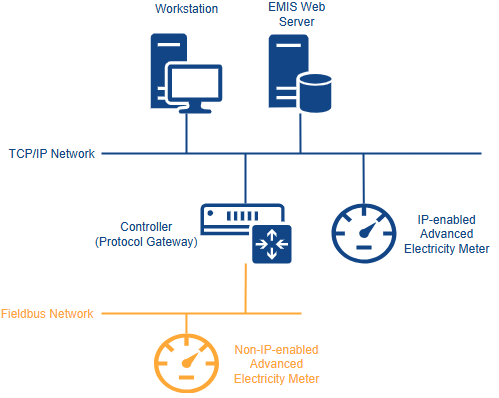
Network connection options for an advanced electricity meter
Network connection options for an advanced electricity meter. (PNNL)

problematic devices are connected. If the ports are functioning correctly, this is likely an issue with the connected devices or the method by which they connect to the controller.   

Connectivity Issues beyond the Controller 

Connection issues can also be caused by factors outside the scope of the controller and meter. If the controller connects to your building EMIS through an IP-based network such as through a wireless local area network (wLAN), you may need to check with your IT department to make sure that network settings have not changed. Moreover, if your controller connects via Ethernet and a MAC address-based protocol, reconfigurations or issues with network switches can cause meters and controllers to go offline. If this is suspected, contact your IT department or submit a ticket regarding physical network issues. Due to the static nature of MAC addresses, address mapping issues are far less common in Ethernet-based networks. In some cases, if your controller connects to the EMIS through any form of cable such as RS485 twisted pair or Ethernet Cat6, the cable itself can be damaged or non-functional. Visually inspect the cable and look for any frays or loose connections. If none are found, it may be necessary to follow your facility’s SOP for cable testing to test the functionality of the cable.

Next: Pre-Troubleshooting Checklists

Before you begin troubleshooting your meter, review the pre-troubleshooting checklists on the following page to ensure that you have the information and tools necessary to proceed.

PNNL

  • Get in Touch
    • Contact
    • Careers
    • Doing Business
    • Environmental Reports
    • Security & Privacy
    • Vulnerability Disclosure Policy
    • Notice to Applicants
  • Research
    • Scientific Discovery
    • Energy Resiliency
    • National Security
Subscribe to PNNL News
Department of Energy Logo Battelle Logo
Pacific Northwest National Laboratory (PNNL) is managed and operated by Battelle for the Department of Energy
  • YouTube
  • Facebook
  • X (formerly Twitter)
  • Instagram
  • LinkedIn